Connect Booking.com, MakeMyTrip and others
Switch the connection on in the channel's extranet, enter your property ID in StayBind, and go live. Step by step for Booking.com, Agoda, Expedia, Trip.com, MakeMyTrip & Goibibo, Yatra and Hostelworld, plus the channels we connect for you.
Most channels connect from their own extranet: you tell the channel that StayBind manages your property, then type the property ID it shows you into StayBind. StayBind shows the exact steps for each channel on its connect screen, with the right channel manager name filled in.
Open the channel on the Channels page. Each property has its own connection: press Connect beside the one to sell.
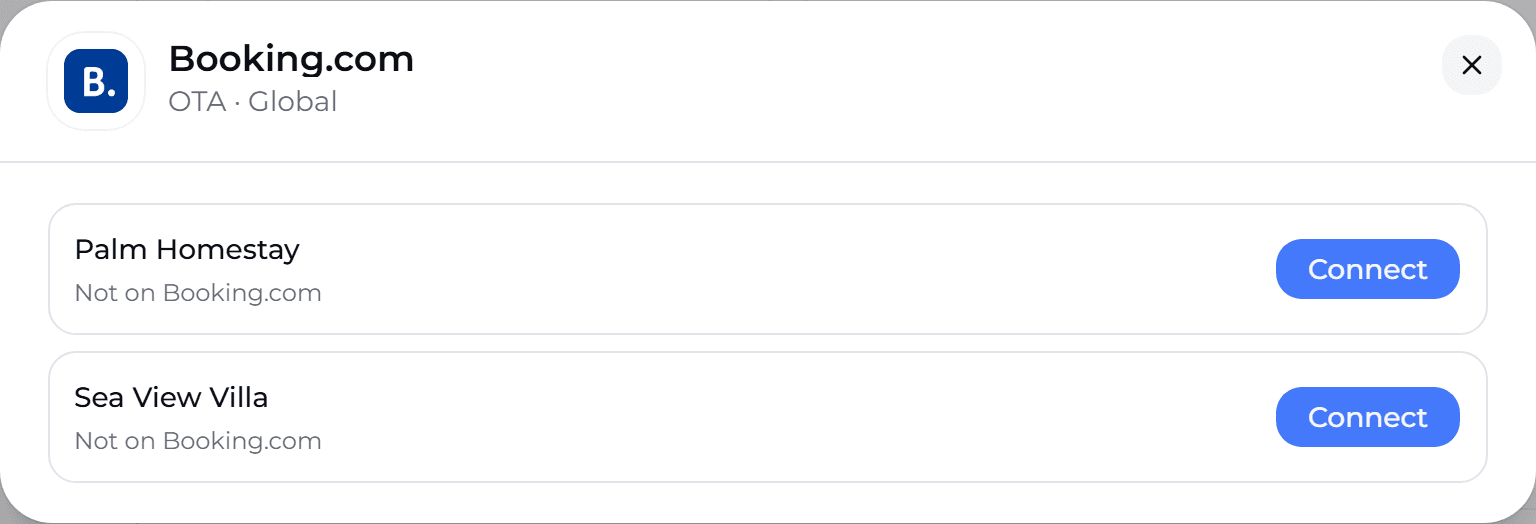
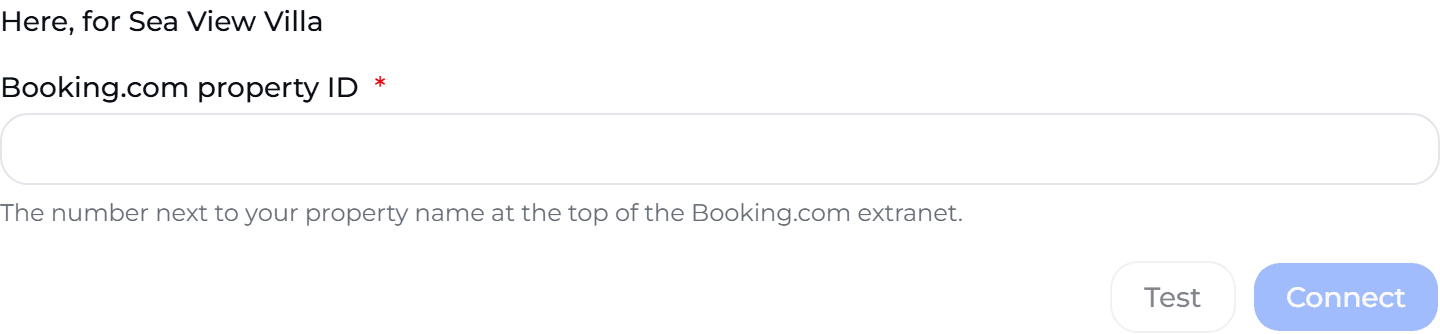
The connect screen shows the steps for that channel, then the ID field:
One channel manager at a time
A channel takes updates from one channel manager per property. If another one is connected now, disconnect it in the extranet first, or the two will overwrite each other's prices and calendar.
Type the name in full
When an extranet asks you to search for the channel manager, type the name StayBind shows on the connect screen exactly and in full. A partial name usually finds nothing.
Booking.com
Sign in to the Booking.com extranet as the property's admin. Booking.com sends a code to the admin's phone, so this is easiest for the owner to do.
Open Account, then Connectivity provider, and press Search.
Type the channel manager name shown in StayBind in full, select it and press Next.
Accept the XML service agreement (Yes, I accept). Booking.com shows the request as waiting; you can map your rooms in the meantime. Going live needs it accepted, usually within minutes.
Copy the property ID shown next to the property name and enter it in StayBind.
After connecting, check any derived rate plans in the extranet: Booking.com can change their minimum stay when a channel manager connects.
Agoda
Sign in to Agoda YCS.
Open Settings, then Property settings, then Optional settings.
Tick Enable channel manager mode, choose the channel manager name shown in StayBind, and press Save.
Copy the property ID from the top of YCS and enter it in StayBind.
Expedia
Sign in to Expedia Partner Central. It asks for a two-step verification code.
Open Rooms and rates, then Connectivity settings.
Choose the channel manager name shown in StayBind for availability and rates, and for bookings, then save. The same connection also sells on Hotels.com and Expedia's other sites.
Copy the property ID from the top of Partner Central and enter it in StayBind.
Trip.com
Sign in to Trip.com eBooking.
Open Rates & Availability, then Connectivity Settings. If it is missing, write to lodgingsupport@trip.com and ask them to switch it on.
Search for the channel manager name shown in StayBind, choose it, press Continue, then Connect.
Copy the hotel ID and enter it in StayBind.
MakeMyTrip & Goibibo
MakeMyTrip connects a channel manager through its own connectivity team, so this one is a message rather than a setting. One connection sells on both MakeMyTrip and Goibibo.
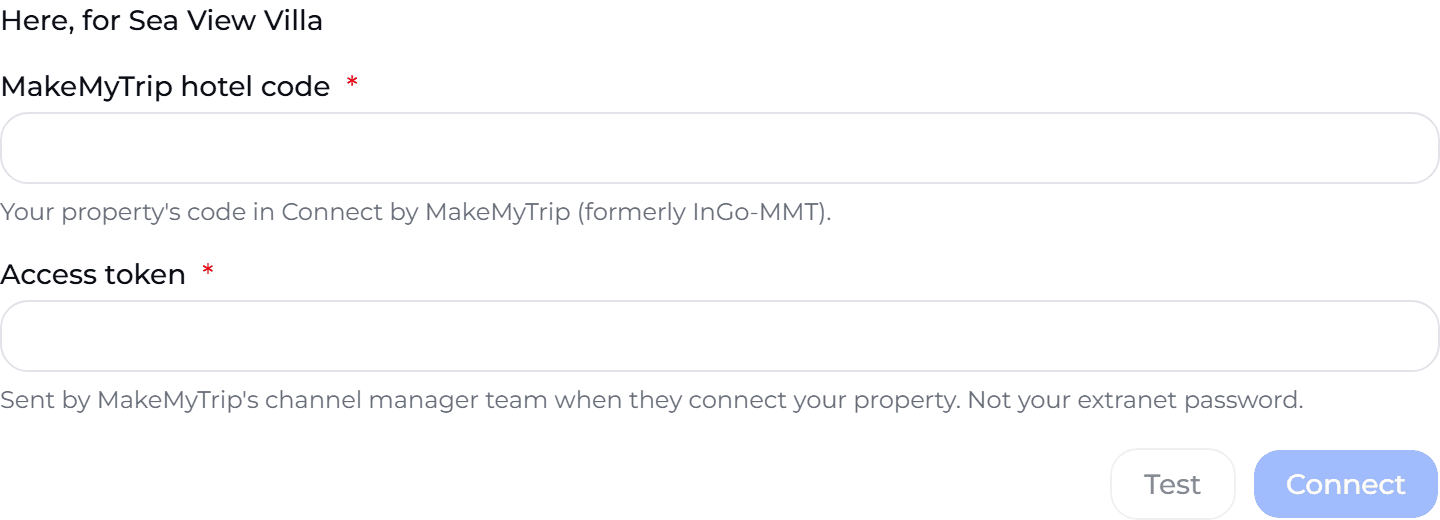
Make sure the property is live on MakeMyTrip: your direct contract, photos and room details complete in Connect by MakeMyTrip (formerly InGo-MMT).
Copy the message from StayBind's connect screen (it has a copy button), put your hotel code in place of YOUR HOTEL CODE, and send it from the extranet's support chat or to your MakeMyTrip account manager.
General support often does not know the term "access token". It is issued per property by MakeMyTrip's channel manager connectivity team. Ask support to pass the request to that team. Other hosts report one to two working days.
When MakeMyTrip replies, enter the hotel code and the access token in StayBind. Until then the connection waits as Setting up, and nothing is sent to MakeMyTrip.
Yatra and Hostelworld
Both connect through their support team.
- Yatra: make sure the property is live with your direct contract, send Yatra support the message StayBind shows (from the extranet's messages), and enter the hotel ID when they reply.
- Hostelworld: send Hostelworld support the message StayBind shows, from the help section of the Hostelworld extranet. When they confirm it is enabled, enter the property ID they send. Hostelworld does not take closed-to-arrival or closed-to-departure rules, and sells a room at its full occupancy (a dorm per bed).
Any other channel in the list
For channels without their own steps above, StayBind shows the general version: ask the channel to connect your property to the channel manager named on screen (from their extranet's connectivity settings, or through their support team), then enter the ID they confirm.
After the ID is in
Press Test to check the ID before connecting; Connect runs the same check anyway. If the property was created a moment ago, StayBind shows Getting it ready and finishes the connection by itself. If the ID is wrong, or the channel has not switched the connection on yet, StayBind says so and nothing is created. Then, as with Airbnb, you map each room, check the booking rules, and press Go live when you are ready. Nothing changes on the channel before that.
When you go live, most channels send the bookings they already hold, and they appear in Bookings within a few minutes. MakeMyTrip, Agoda, Yatra and Hostelworld cannot. For those, add existing bookings by hand in Bookings so their nights stay closed; the go-live screen reminds you.
Channels we connect for you
Vrbo, Google, Hopper and Hotelbeds have no form or sign-in a host can finish alone. Ask from the app and we set it up with you:
Open the channel on the Channels page.
Choose the properties to connect. Add your listing link or ID in the note if you have one.
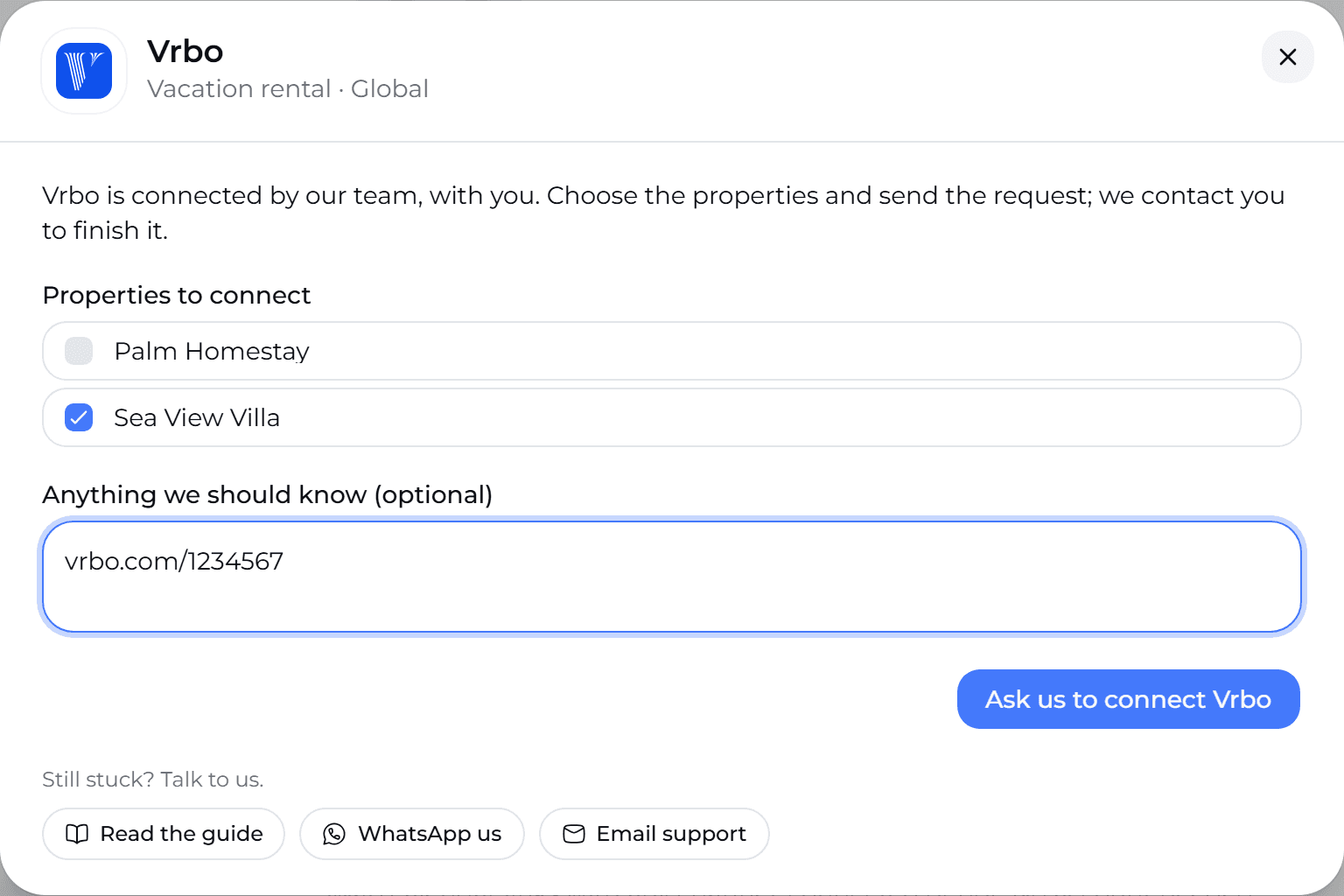
Press Ask us to connect. The team is told straight away, and the request stays on that screen with the date you sent it, so you always know it arrived.
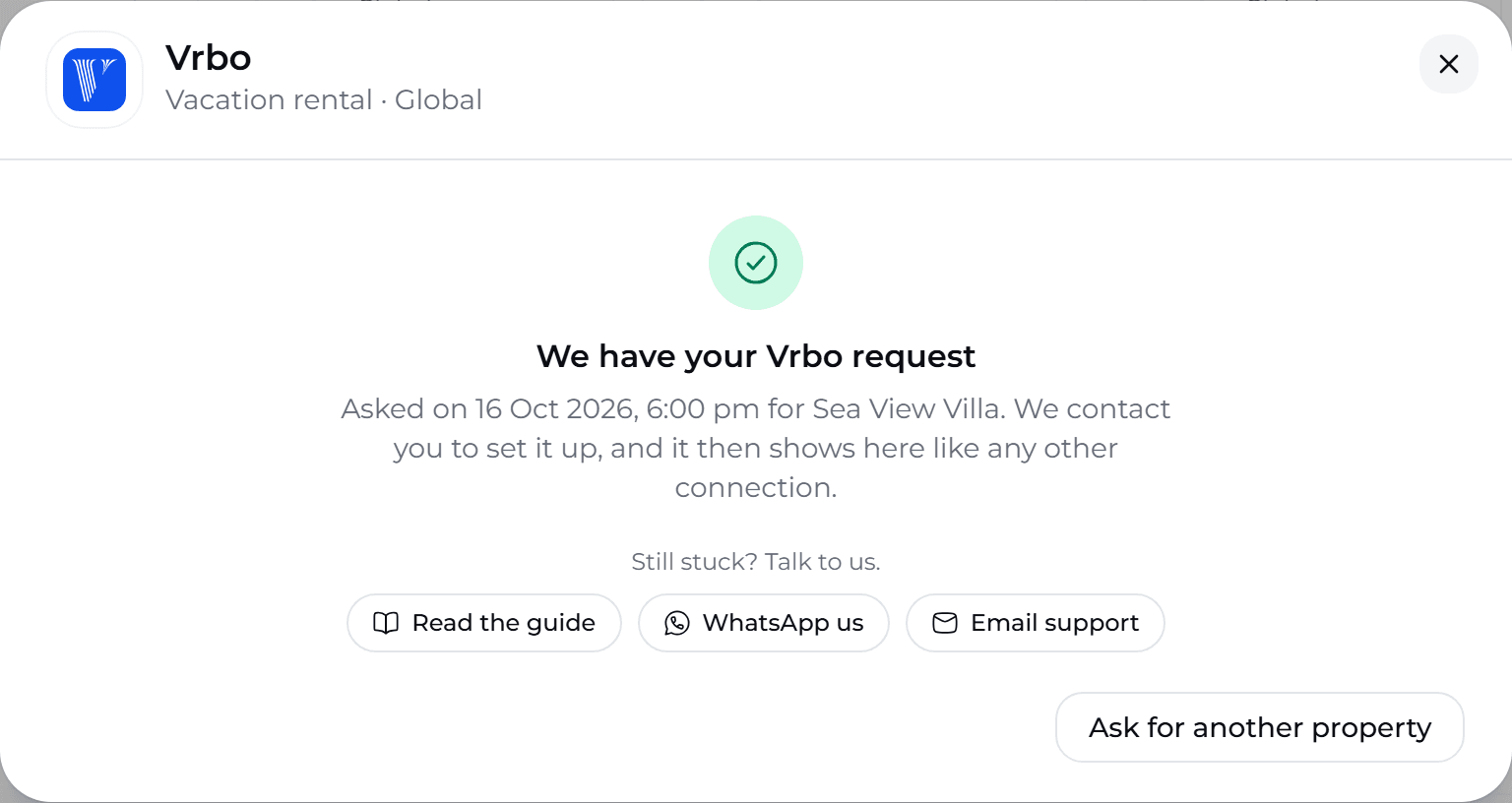
We contact you to finish the setup. Once it is done, the channel appears on the Channels page like any other connection.