Calendar sync
Stop double bookings with any channel by swapping calendar links, with no account connection needed.
Calendar sync swaps calendar links (often called iCal links) between StayBind and a channel. It works with almost any channel, including ones StayBind does not fully connect to, and needs no sign-in.
It only carries dates: which nights are booked or blocked. It does not send prices, booking rules or guest details. For those, use a full connection (Airbnb, other channels).
You find it on the Channels page, under Calendar sync.
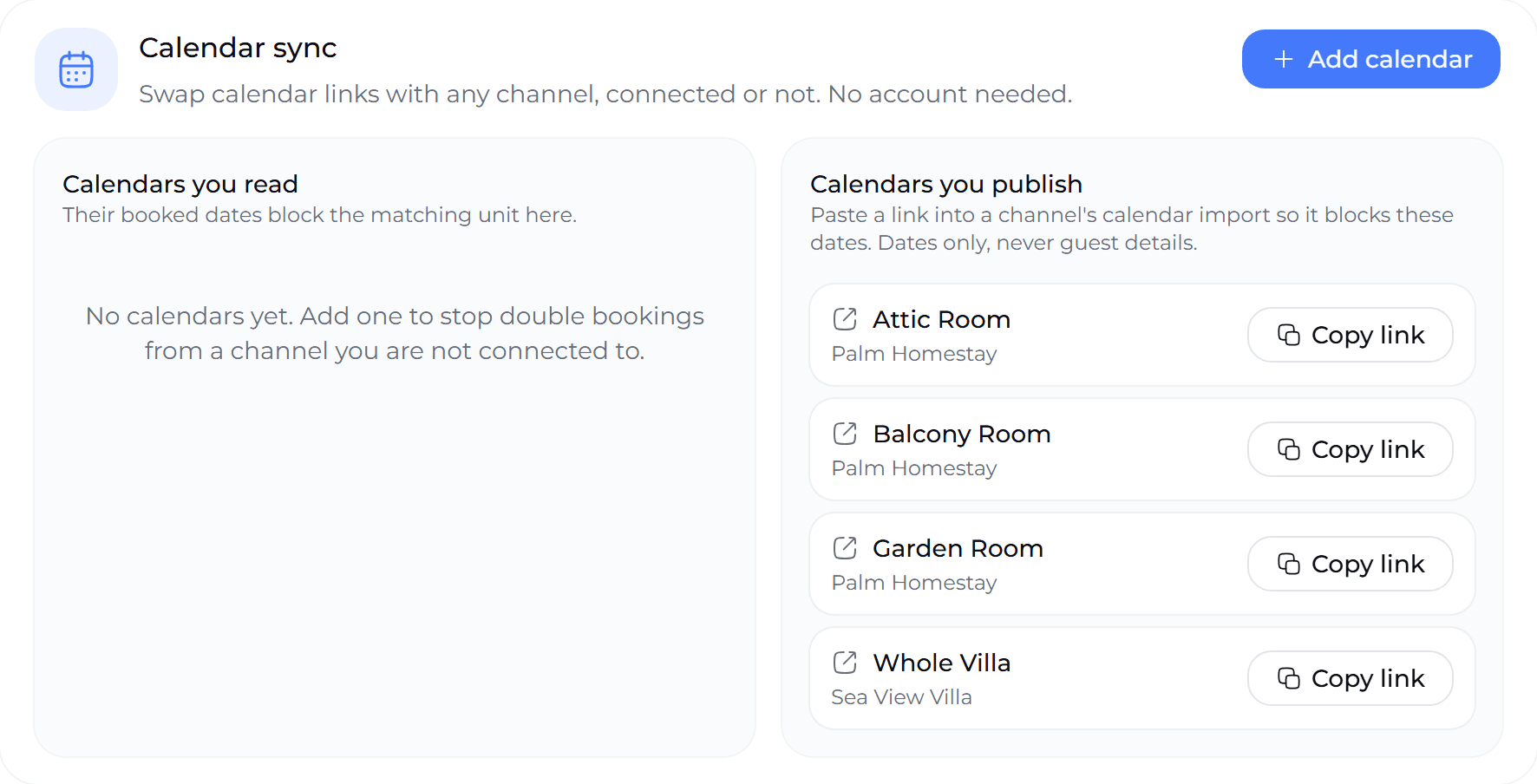
Bring a channel's dates into StayBind
On the channel, open the listing's calendar settings and copy its export link (sometimes called "export calendar" or "sync calendar").
In StayBind, press Add calendar. Choose the room the dates should block, the channel, and paste the link.
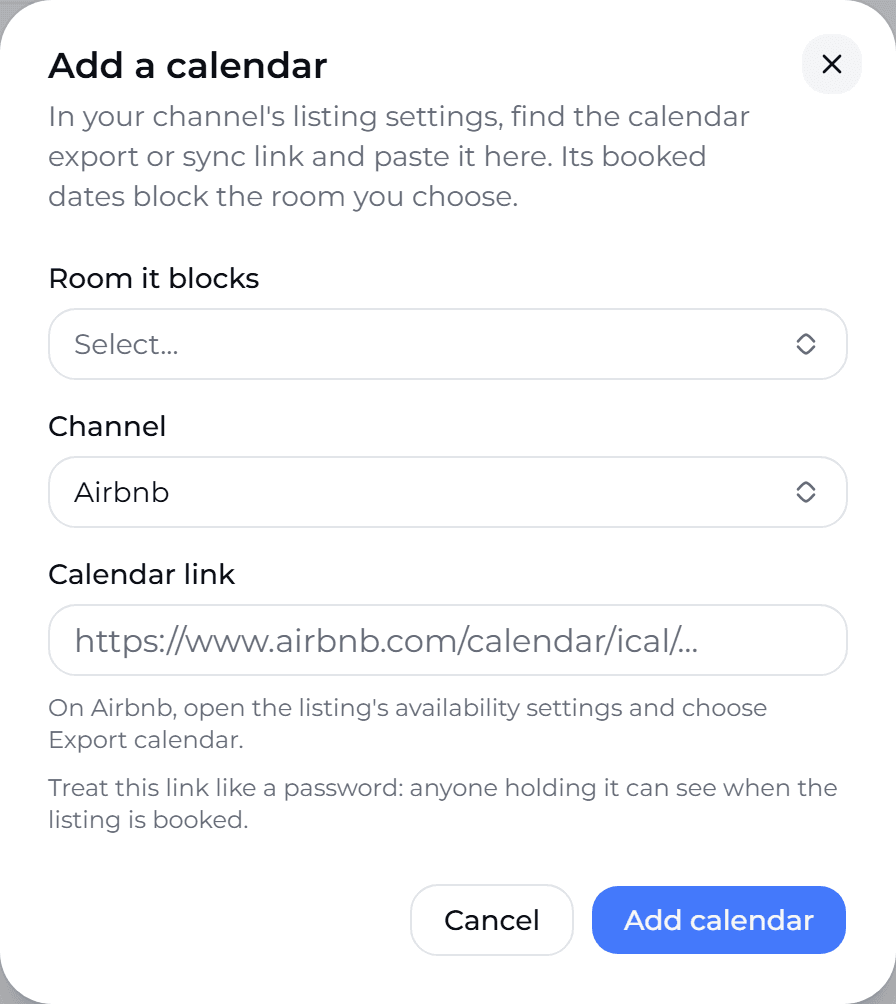
Press Add calendar. Booked dates on the channel now block that room in StayBind. Sync now reads every calendar again straight away.
Keep the link private
Anyone holding a calendar link can see when the listing is booked. Paste it only into StayBind or the channel itself.
Send StayBind's dates to a channel
Under Calendars you publish, each room has its own link. Copy it and paste it into the channel's calendar import setting. The channel then blocks the nights booked anywhere else. The link holds dates only, never guest details.
When to use which
| You want | Use |
|---|---|
| Prices, rules and bookings to flow both ways | A full connection |
| Only to stop double bookings with a channel StayBind does not connect | Calendar sync |
| A channel that is waiting to be connected (for example, MakeMyTrip while their team issues the token) | Calendar sync until the connection is live |
Channels read calendar links on their own schedule, often every few hours, so a booking made on one channel can take a while to block the other. A full connection updates within seconds.
Connect Booking.com, MakeMyTrip and others
Switch the connection on in the channel's extranet, enter your property ID in StayBind, and go live. Step by step for Booking.com, Agoda, Expedia, Trip.com, MakeMyTrip & Goibibo, Yatra and Hostelworld, plus the channels we connect for you.
Troubleshooting
What to do when a channel connection does not work the way you expect, and how to reach us.