Connect Airbnb
Sign in on Airbnb, choose which room each listing sells, check the booking rules and calendar, and go live. Plus what to do when Airbnb shows no listings.
Airbnb connects by signing in. There is no ID to copy and no form to fill: you approve StayBind on Airbnb, come back, and choose which room each of your listings sells.
Before you start
- Sign in as the listing's owner. The account that shows as the host on the listing. A co-host login cannot approve a connection for listings it does not own.
- The listing must be published (shown as Listed on Airbnb). Drafts, listings waiting for review, and snoozed or unlisted listings are not shared.
- Your Airbnb account is complete: email verified and host details filled in.
- No other channel manager on the account. If another one is connected, remove it on Airbnb first: Account, then Privacy, then Services. Airbnb takes updates from one at a time.
- Open future dates on Airbnb. In each listing's availability settings, choose all future dates rather than Unavailable by default, or StayBind cannot open nights there later.
Connect
Start from Channels
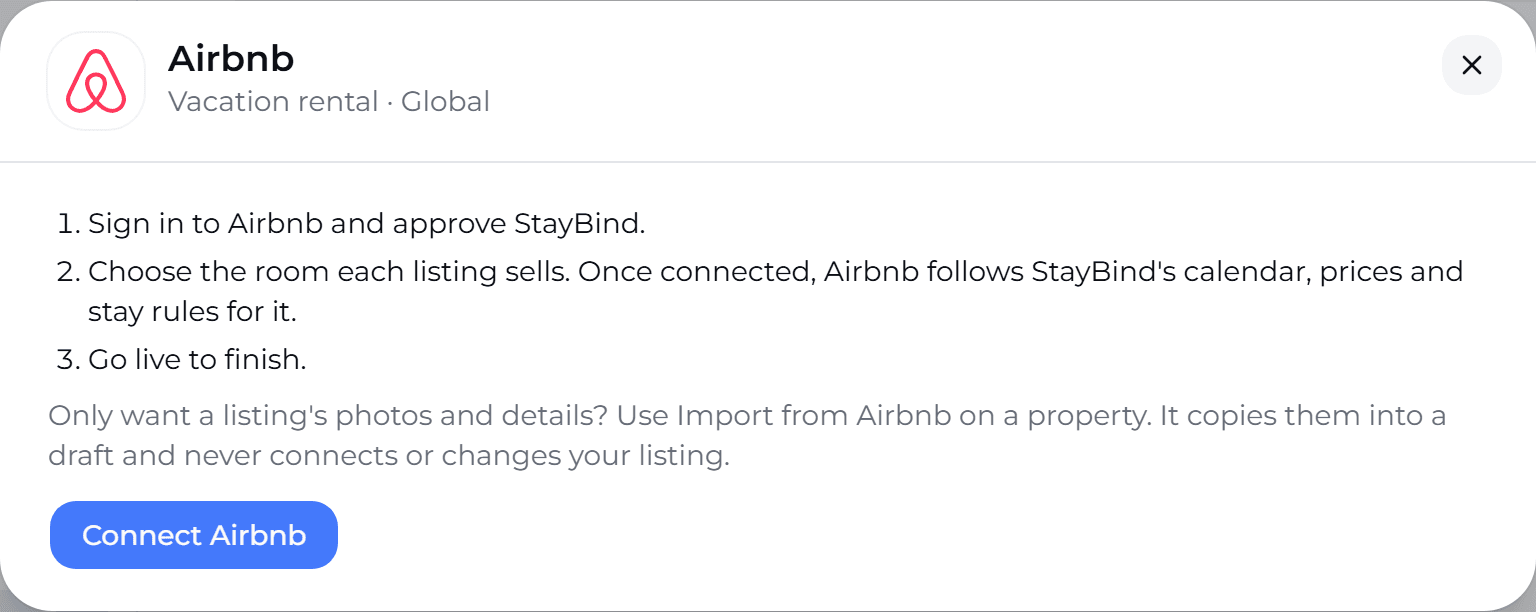
Open Channels, find Airbnb and press Connect. The first screen sums up the three steps.
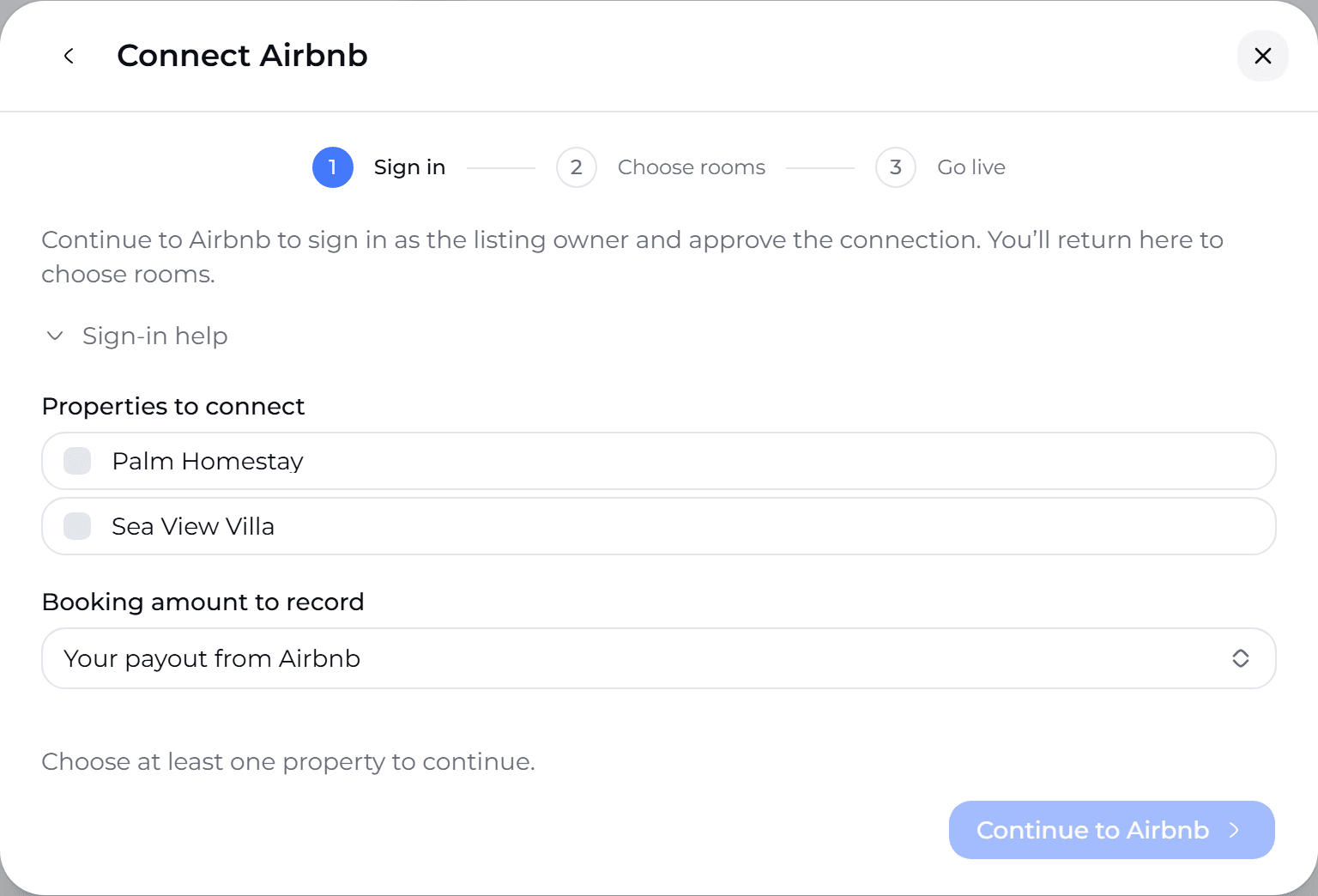
Press Connect Airbnb. Choose the properties whose listings are on this Airbnb account, and which amount StayBind should record for each booking: What the guest paid or Your payout from Airbnb.
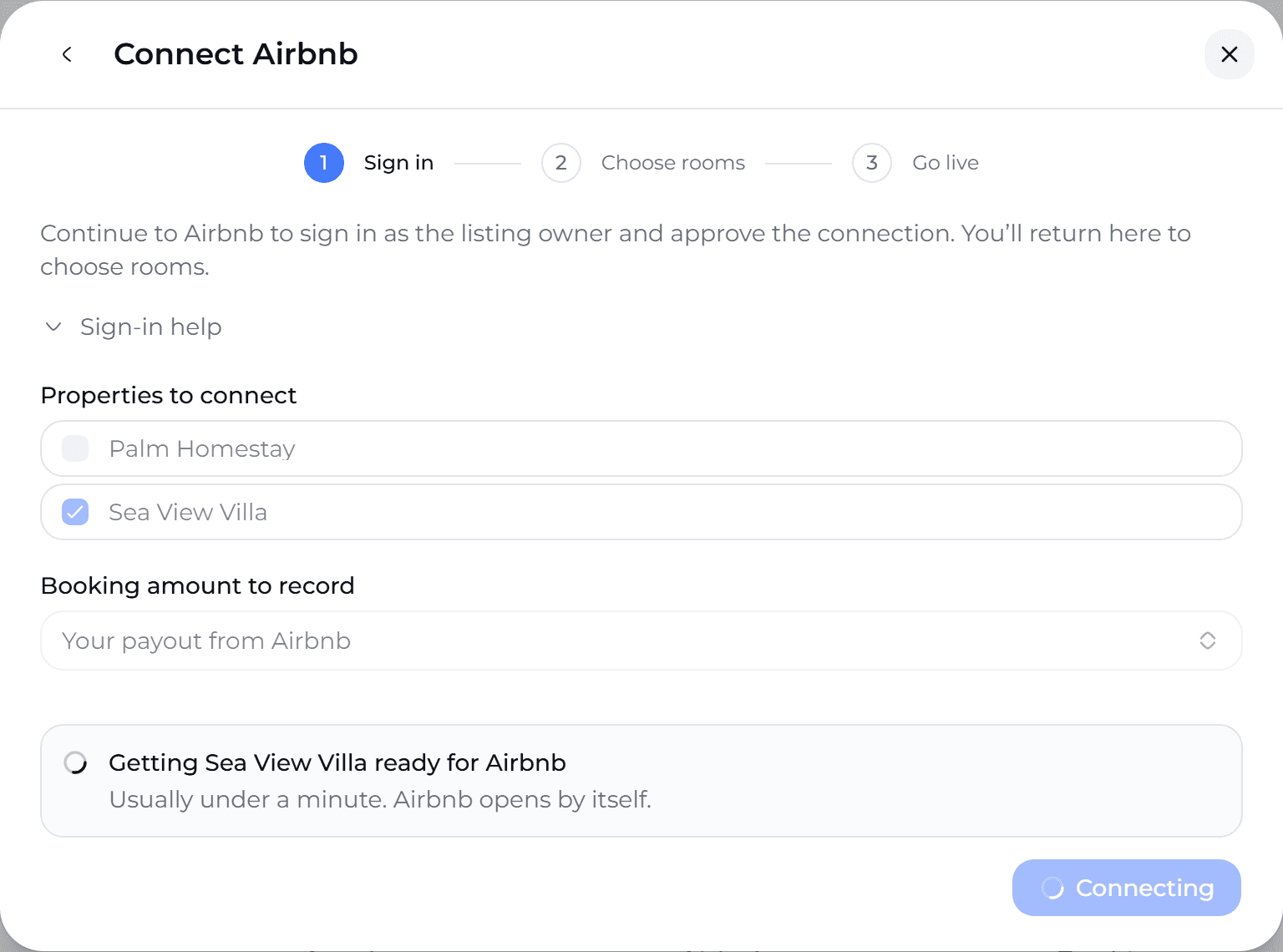
A property you created a moment ago may need a minute to get ready. StayBind shows Getting ready for Airbnb and opens Airbnb by itself when it is done; you do not need to press anything again.
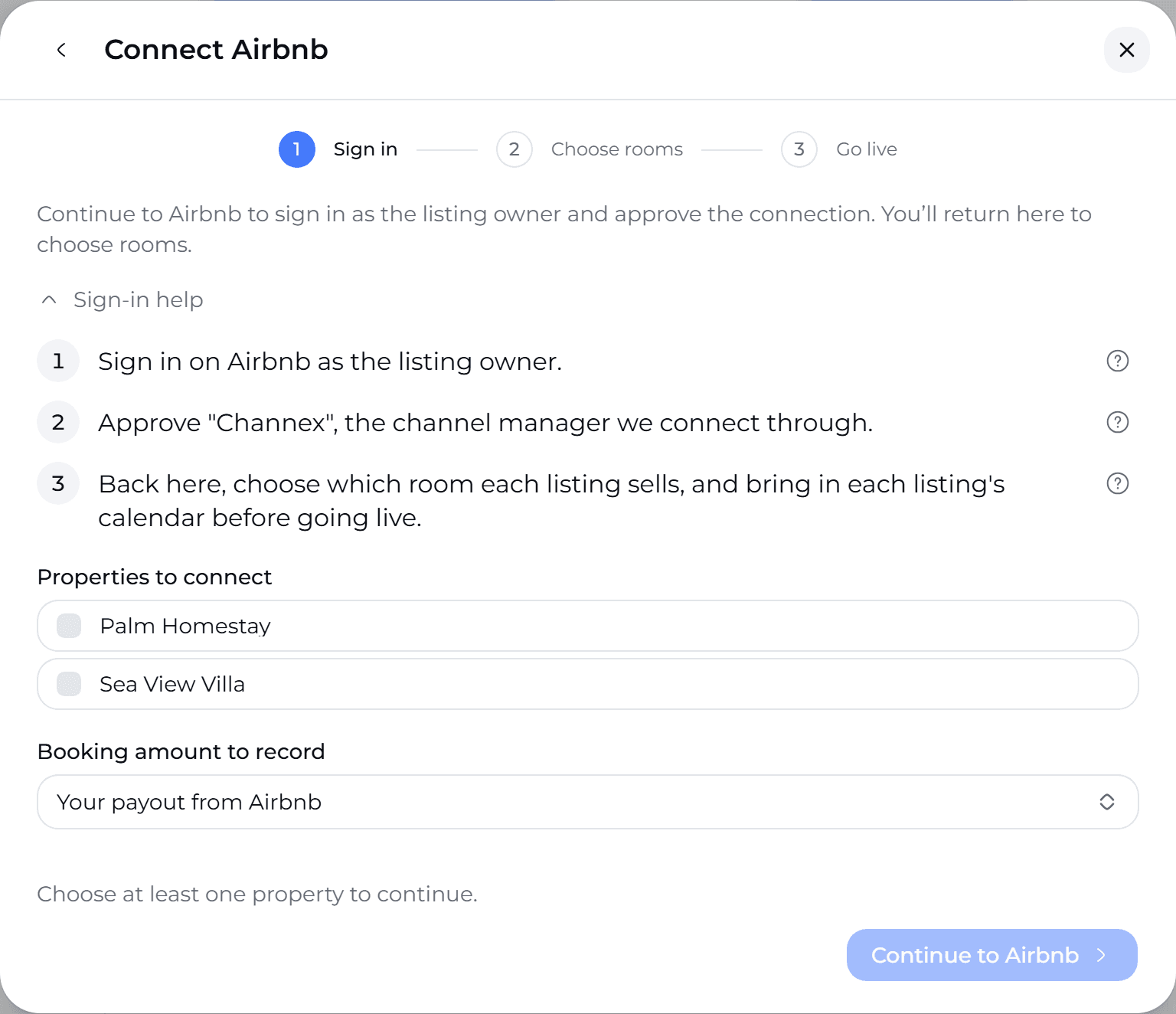
Sign-in help opens the checklist above, in the app, if you want it beside you.
Approve on Airbnb
Press Continue to Airbnb. Airbnb opens; sign in with the owner's account and approve the connection. Airbnb then sends you straight back to StayBind.
Check what Airbnb shared
Back in StayBind, you see how many listings Airbnb shared. From here you can bring a listing's photos, description and amenities into StayBind to check, or go straight to choosing rooms.
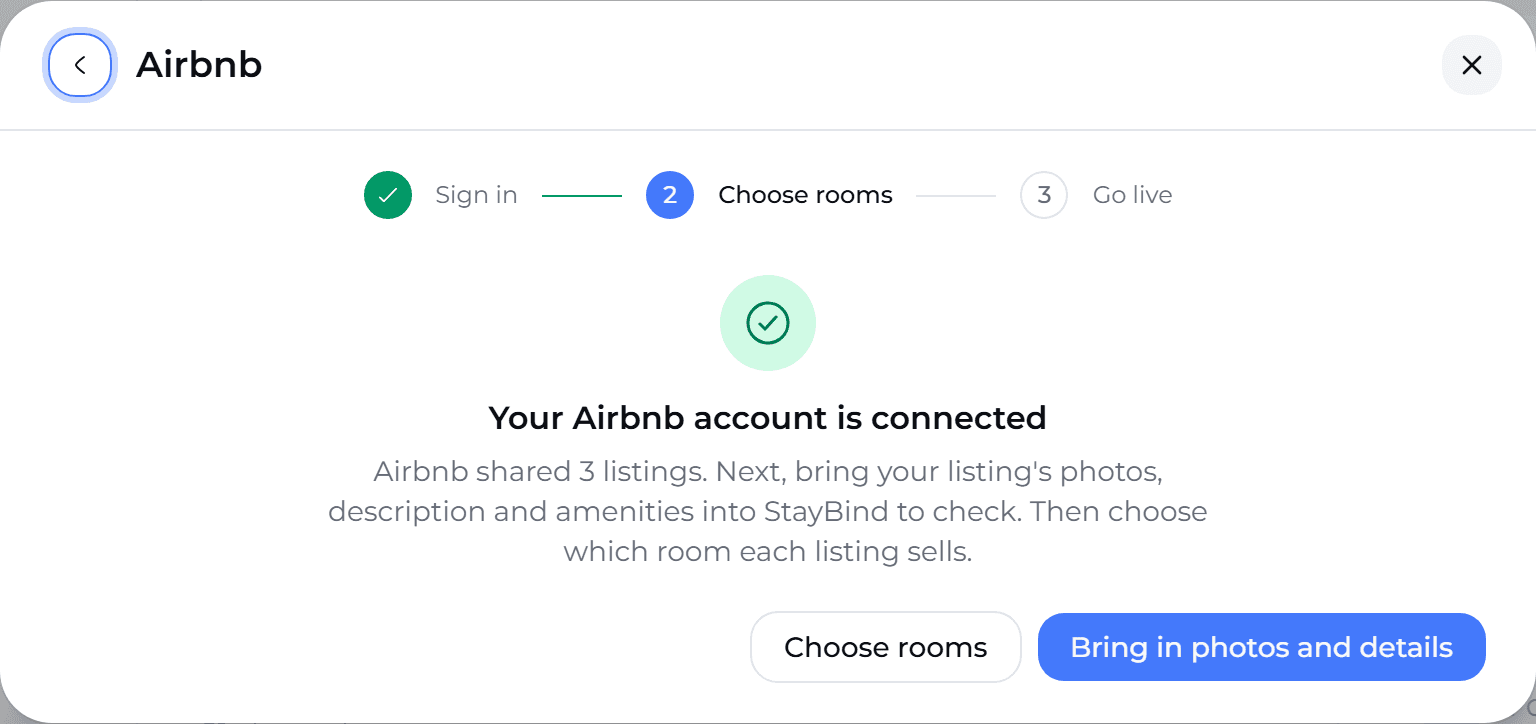
If Airbnb shared no listings, see Airbnb shows no listings below.
Choose the room each listing sells
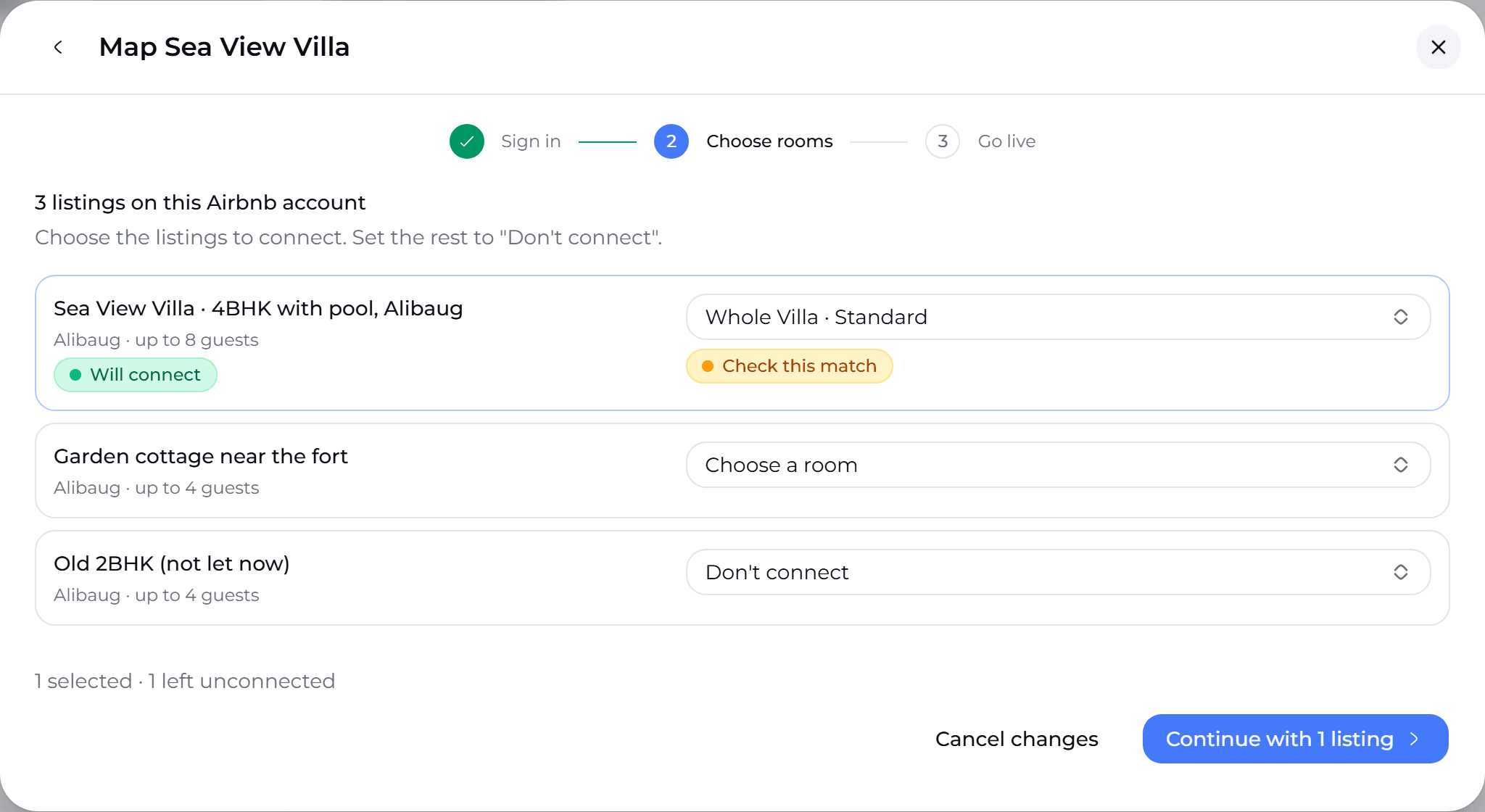
For each listing, pick the room in StayBind it sells, or Don't connect for listings you do not want StayBind to touch. When a listing's name matches one of your rooms, StayBind suggests it; nothing is chosen for you without a reason shown.
Bring in the Airbnb calendar
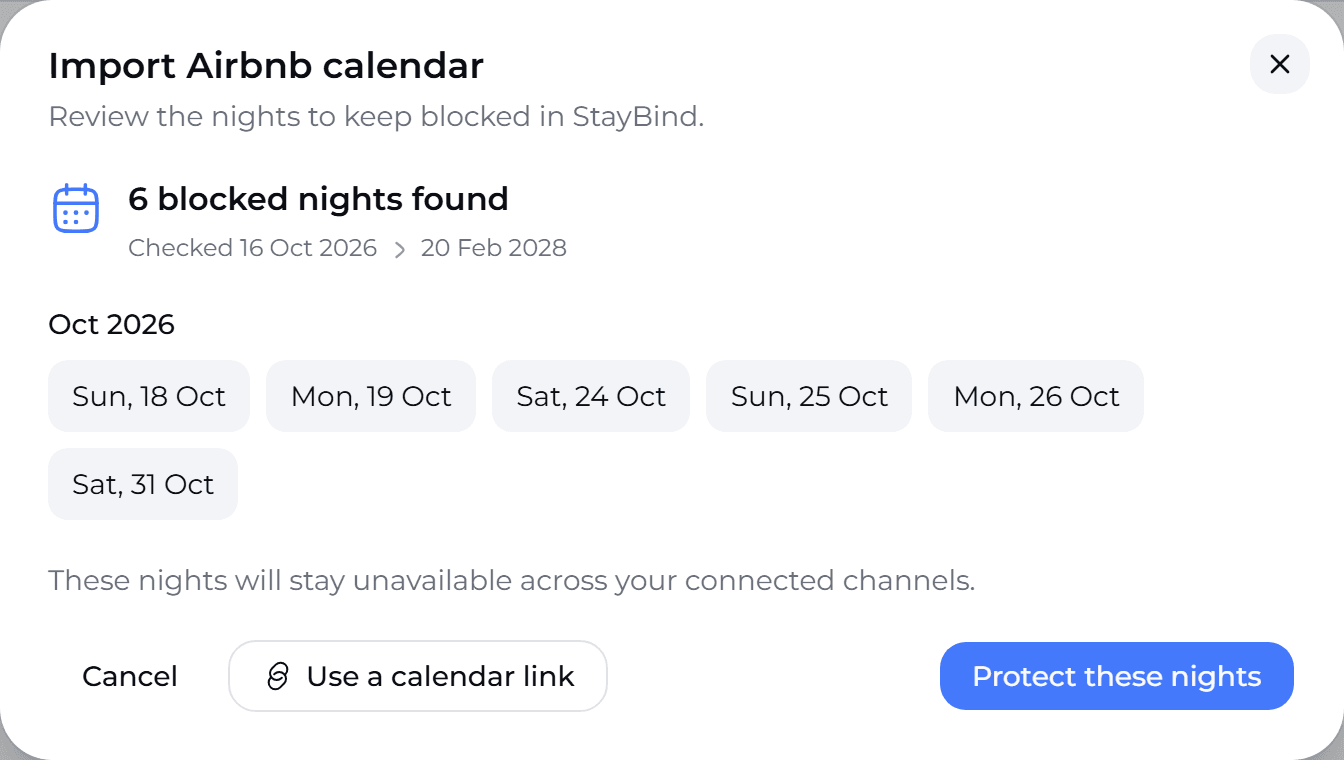
On the Go live step, each listing has Import calendar. Press it, then Fetch Airbnb calendar. StayBind shows every night that is booked or blocked on Airbnb, so you can see them before anything changes. Protect these nights keeps them closed in StayBind too. This comes first, so going live can never open a night you had closed on Airbnb.
Check the booking rules
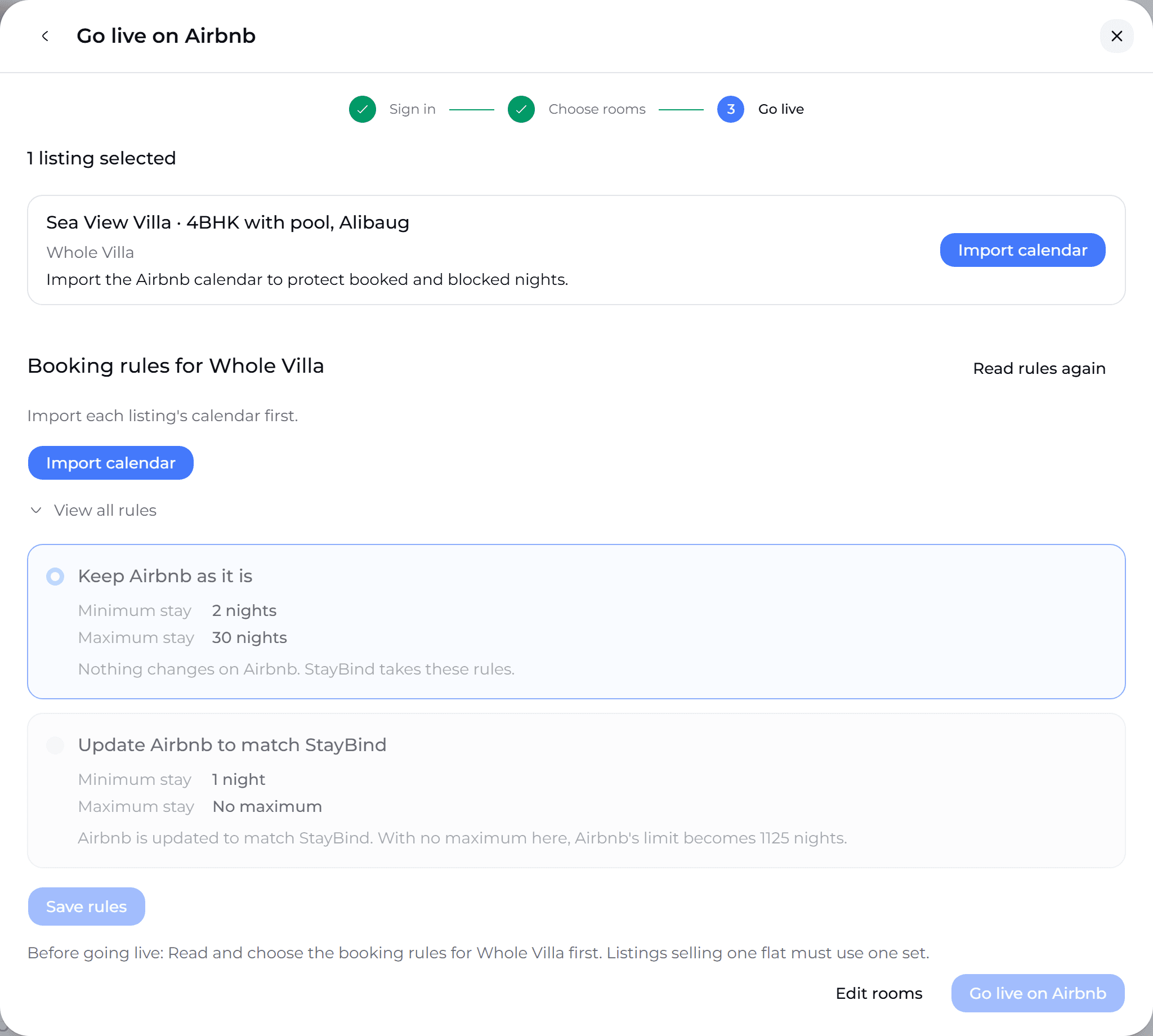
StayBind reads each listing's rules on Airbnb (minimum and maximum stay, how far ahead guests can book) and shows where they differ from StayBind. Choose Keep Airbnb as it is or Update Airbnb to match StayBind. A room sold by more than one listing uses one set of rules.
Go live
When every listing has a room or is set to Don't connect, and the calendar and rules are checked, press Go live on Airbnb. If the button is greyed out, the line above it says what is left. From then on, prices and availability flow from StayBind to Airbnb, and Airbnb bookings arrive in StayBind as they happen.
Airbnb shows no listings
The sign-in worked, but Airbnb returned no listings for the account. This is not an error in StayBind: Airbnb only shares listings it considers ready, and it does not say which reason applies. StayBind shows the same checklist on screen.
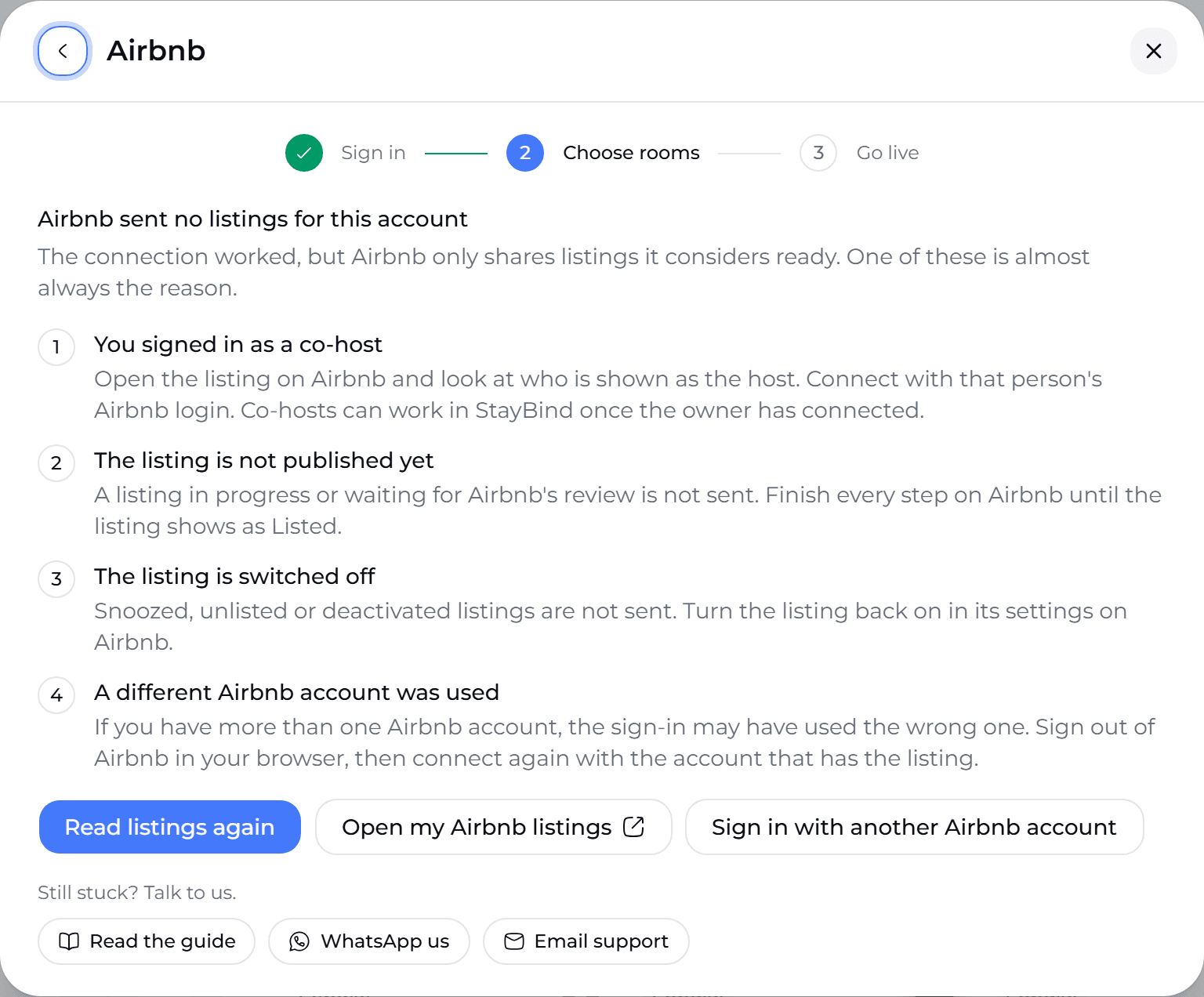
Check each of these on Airbnb, most likely first:
- You signed in as a co-host. Open the listing on Airbnb and look at who is shown as the host. Connect with that person's Airbnb login. Co-hosts can work in StayBind once the owner has connected.
- The listing is not published yet. A listing in progress or waiting for Airbnb's review is not sent. Finish every step on Airbnb until it shows as Listed.
- The listing is switched off. Snoozed, unlisted or deactivated listings are not sent. Turn the listing back on in its settings on Airbnb.
- A different Airbnb account was used. If you have more than one Airbnb account, the sign-in may have picked the wrong one. Sign out of Airbnb in your browser, then connect again with the account that has the listing.
When you have fixed it, press Read listings again. You do not need to sign in again unless it was the wrong account; then use Sign in with another Airbnb account.
Open my Airbnb listings takes you to your listings on Airbnb, where you can see each listing's status.
More than one Airbnb account
Many teams sell the same building from several Airbnb accounts: the owner's, a relative's, a co-host who is the main host on some listings. Connect each account separately from the Airbnb channel; each one brings its own listings. On the Airbnb channel, StayBind shows which account sells which room, so two listings never sell the same night by accident.
If the sign-in did not finish
When the sign-in does not end in a connection, StayBind says what happened when you return, and nothing is changed on Airbnb.
| What you see | What it means | What to do |
|---|---|---|
| The connection was not approved | You, or Airbnb, declined on the approval screen. | Press Connect again when you are ready. |
| That sign-in link expired | Sign-in links last two hours. | Press Connect again for a fresh one. |
| Airbnb could not be connected | Airbnb refused or did not answer. | Press Connect again. If it keeps failing, use WhatsApp us on the same screen. |
| This Airbnb account is connected to another workspace | The same Airbnb account is already connected in a different StayBind workspace. | Disconnect it there first, or message us and we will help you find it. |
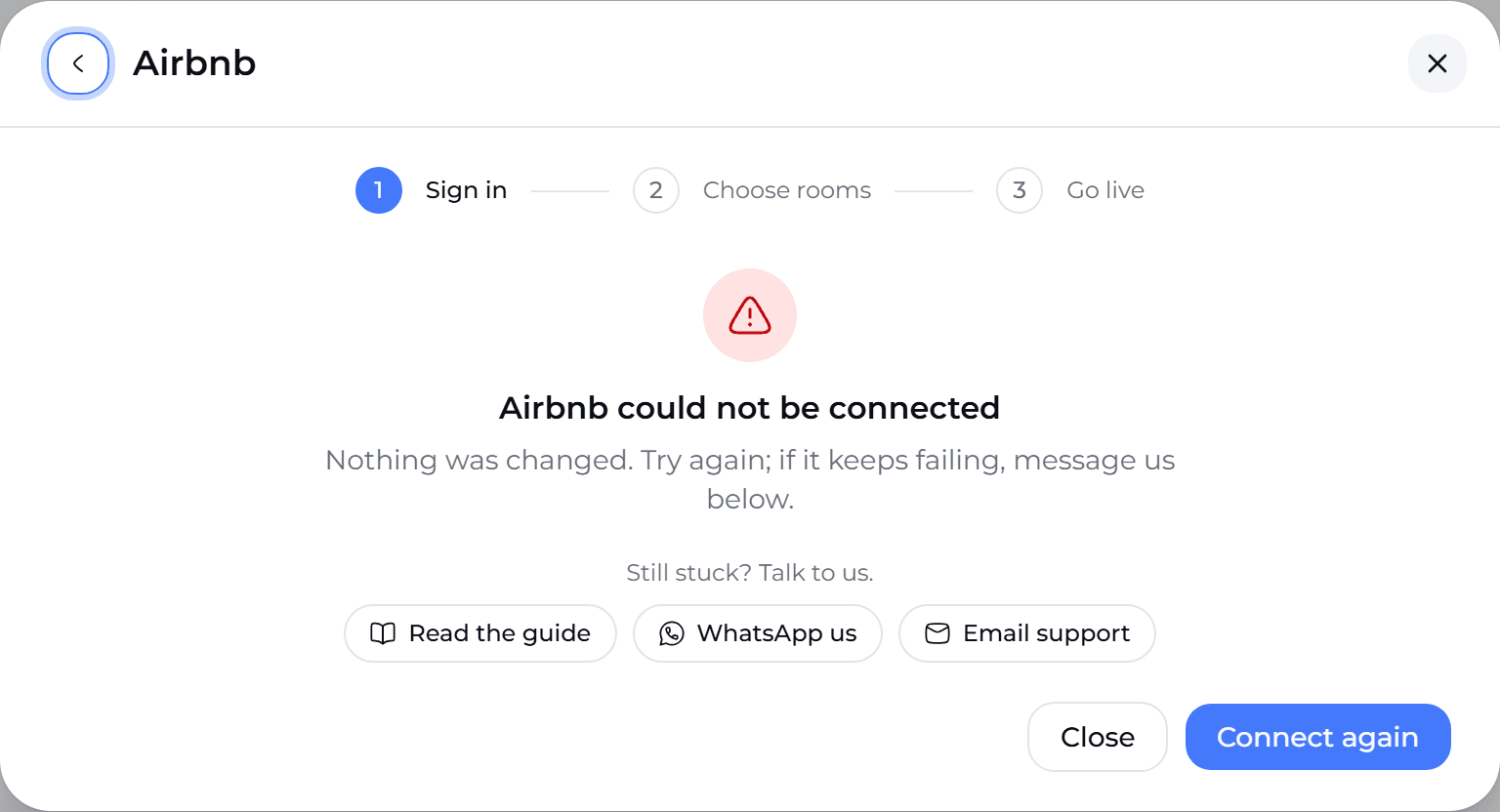
Common reasons Airbnb refuses:
- The account is a co-host on the listing, not the owner.
- The account's email is not verified, or host details are incomplete.
- Another channel manager is still connected to the account.
Connect your channels
How StayBind connects to Airbnb, Booking.com, MakeMyTrip and the rest, which way fits each channel, and where to get help if a step does not work.
Connect Booking.com, MakeMyTrip and others
Switch the connection on in the channel's extranet, enter your property ID in StayBind, and go live. Step by step for Booking.com, Agoda, Expedia, Trip.com, MakeMyTrip & Goibibo, Yatra and Hostelworld, plus the channels we connect for you.